
How is purchase handled?
The easiest way to purchase our plugins is right here on this website.
After checkout, you will receive a confirmation mail from our payment provider, FastSpring.
This will contain a SERIAL number: just copy and paste it into the plugin, and you're good to go.
You can retrieve all your past invoices and serials at any time via your FastSpring Account
There is an exception for Abyss/Chop Suey.
Note: We are tiny and indie. By purchasing directly from us, you support our work in the best way, as 3rd party dealer takes a substantial chunk of the revenue. Thank you for consideration!
How does the FREE TRIAL work?
Simply download the free trial.
No email, no registration, no bullshit.
The plugin will run in trial mode, that is a mild vinyl like crackle every now and then.
And even this starts only after 3 days.
For activation you will get a SERIAL, you don't need to
install a different software.
For Abyss and Chop Suey there is a trial available at tracktion.com
Download and click UNLOCK / START TRIAL to
get your 90 days of free full access.
How do I activate my product?
The purchase is handled via our payment provider FastSpring.
After purchase, you will get an email with your SERIAL from FastSpring.
- Download the most recent version here: Downloads
- Open the plugin in your favorite DAW
- Click ACTIVATE
- Paste the SERIAL
It doesn't get easier than that!
Note: Abyss and Chop Suey are currently activated only via tracktion.com - we are working on this!
I am broke. Do you have free plugins?
I feel with you - I have been broke many times in my life!
We have the iconic free Synth ZYKLØP and the textural ambient Reverb SOL
Just download, we don't ask for your mail, no registration, no bullshit.
And of course you also get full support - reach out if you have any question.
Or join the Dawesome Village.
This is the friendly and supportive community for sound lovers.
No drama. No ego. Friendly and respectful.
How to activate Abyss / Chop Suey
Abyss and Chop Suey cannot currently be activated using a serial number, but we are working on it.
Until then...
Follow these steps:
- Click the link to Tracktion provided in your email.
- Log in or create a Tracktion account if you don’t have one.
- Enter the redemption code from your email (the code may also be referred to as a license key) on the activation page.
- Use the Tracktion Download Manager to install the product (not needed if you already have the demo version installed).
- Open the plugin in your DAW and click ACTIVATE.
- Enter your Tracktion.com credentials to activate.
You can install the plugin on up to 3 computers.
Enjoy your new plugin!
Can I still purchase via Tracktion?
Yes, you can also purchase our plugins via tracktion.com
In this case, your orders and licenses are managed directly through your Tracktion account.
It is recommended to install and use the Tracktion Download Manager.
To activate the plugin, you need to enter your Tracktion account email and password directly within the plugin.
You can access your tracktion.com account here: Tracktion Account
Can I purchase via 3rd party shops?
If you purchase through other third-party retailers, the process involves a few extra steps.
- You will get a redeem code from the vendor
- If you don't have a tracktion.com account you need to create one
- Redeem your code on the Tracktion website here: Tracktion Code Redemption
- Download and install the Tracktion Download Manager to install the plugin
- Finally, activate the plugin inside your DAW by entering your Tracktion account email and password.
Note: I don't have access to the retailers tools / databases. If there is any issue with the purchase / activation process you will need to resolve this with help of the Tracktion Bot or create a service ticket for tracktion here.
Of course I can (and gladly will) help with any technical issue regarding the plugins themselves, just drop me a message!
I usually reply within 24h and read all messages myself. No bots involved.
Why does Windows SmartScreen sometimes show a warning?
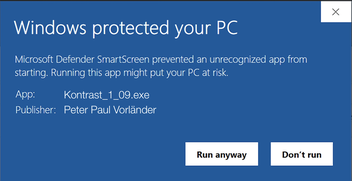
SmartScreen is "reputation-based". When a file is new, it has no download history yet, even if it is properly signed and completely safe. Because of this missing reputation, SmartScreen may show
a warning to the first users who download it. After enough installations have occurred without any issues, the file gains reputation and the warning disappears automatically.
Big companies can buy there way out and purchase instant reputation. As a tiny indie developer I don't have the funds :-/
Publisher should be: Peter Paul Vorländer or Vorlaender
And you can press the button "Run anyway"
How to access and install MYTH Expansion packs after purchase?
Follow these steps:
- Download the pack via the link in your email.
- Open a single instance of the plugin the pack is built for in your DAW.
- The pack will be installed automatically when AUTOSCAN FOR PACKS AT PLUGIN START is active.
- Otherwise drag and drop the downloaded file to the plugin user interface …
- … or use INSTALL PACK from menu
- Click on BROWSE in MYTH or open the preset dialog to access the presets
Have fun! 🎶
How to access and install KULT Expansion packs after purchase?
To access your digital product, follow these steps:
- Download the pack via the link in your email.
- Open a single instance of KULT in your DAW
- Drag and drop the folder to the KULT user interface,
- Click the "refresh" button in the right sidebar next to the text field,
- You can remove the .zip and the unzipped folder from drive afterwards
Have fun! 🎶
How to access and install NOVUM Expansion packs after purchase?
To access your digital product, follow these steps:
- Download the pack via the link in your email.
- Unzip the file to a permanent location, SSD recommended - !!! not within the USER PRESETS directory !!!
- Open a single instance of NOVUM in your DAW
- Drag and drop the folder to the NOVUM user interface…
- … or select “REGISTER CONTENT PACK” from the main menu on the top left
Have fun! 🎶
Is there a way to relocate my NOVUM preset packs directory?
- Open Novum
- For each of your packs: right-click the search letter for the pack to find it, and then choose "UNREGISTER PACK"
- Find a new place for your packs: should be SSD, should NOT be within the USER_PRESETS folder!!!
- Move your packs to the new locations
- Register each pack in Novum again
Do you offer student discounts?
Yes! Students can purchase my plugins at a discounted price through Tracktion’s education program. Just follow the link, submit your student verification, and get access to the special pricing.
Why Dawesome plugins don’t offer MIDI Learn?
MIDI Learn was invented back in the 1990s, at a time when plugins had few or no automatable parameters. It was a great idea for its era, but it relies on MIDI CC messages with only 7-bit resolution — just 128 steps.
Modern DAWs have since introduced full parameter automation: high-resolution, sample-accurate, and deeply integrated into the workflow. In my plugins, almost every parameter can be automated this way — which I consider the more precise and reliable approach for musical control.
When a plugin offers both MIDI Learn and DAW automation, conflicts can easily occur: the DAW may store both the CC data and automation data for the same parameter, often resulting in artifacts or complete chaos.
For that reason, Dawesome plugins intentionally focus on proper DAW automation rather than MIDI Learn.
Drop me a Line!
Got feedback? Questions? My name is Peter, aka Dawesome.
I am here to help you. I reads all messages myself and reply fast - usually within 24 hours.